Export Reports (Desktop)
Clicking on  located on the upper left corner of the Positions and Gains tabs allows you to export that information as a .csv file.
The Journal give you the ability to export reports in a PDF file on your desktop platform. But that’s just the beginning.
You can export from the Transaction or Reconciliation view filtered by Account, Symbol, Tags, Notes and/or Date Range.
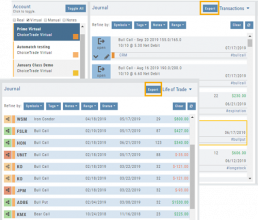
Life of Trade View also allows you to filter by Order Status in addition to the above criteria for even more focused report. Only want to print Closed Trades? Want to see how many trades are Unmatched? Select those filters.
The top of your Journal report displays the Tag Summary based upon the account(s) and filtering criteria selected.
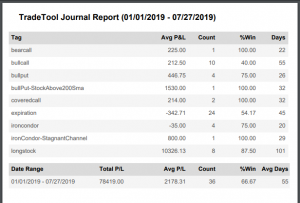
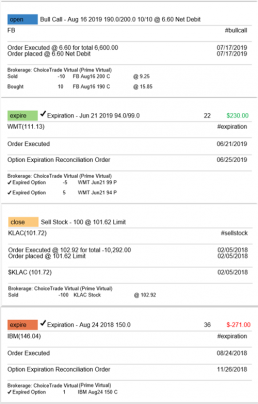
The trade detail report displays the status, Open, Close, Expire with a color code of the trade: Blue=Open, Green=Profit, Red=Loss, Yellow=Unmatched.
Link Trades in Journal
Trades can easily be linked in the Journal. This is helpful to keep related trades grouped together for easier tracking and analysis.
Some common applications include:
- Covered Calls – keeping stock and selling Calls with different Expirations
- Adjustment/Repair Trades
- Other previously Unmatched trades
This feature is best used in the Life of Trade View in the Journal.
The following steps will allow you to Link Trades: 
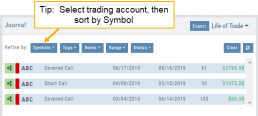
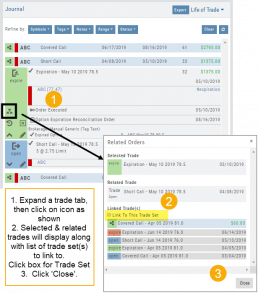
1. After selecting your account and sorting by symbol, expand one of the trade tabs you want to link to another trade group or set.
Click the ‘Link Icon‘
2. A pop-up window will list the Selected (Expanded) Trade, any related trade and Available Trade Sets for that symbol in that account.
Note: You can link trade sets both prior to and following your current, selected trade.
Example: You want to link a May 2019 expired Call to April 2019 and June 2019 Covered Call trade set.
3. Click “Link To This Trade Set” for trade set(s) to link selected trade to, then click “Close“.
In this example, we linked an Expired May 10 2019 short call to an April and June Covered Call trade set.
After linking the trade, notice the total Profit (Loss) Amount updated, but the trade duration did not.
This is because the May Call falls in between the original April trade entry and the June expiration.
If you have more trade sets to link, repeat the previous steps as outlined.
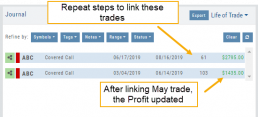
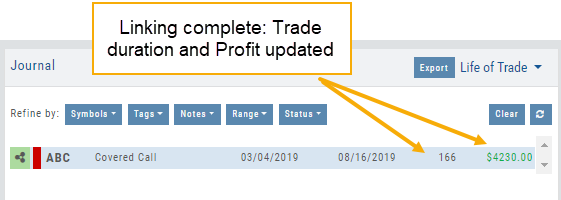
Final note: If you link a trade in error, simply expand the same trade tab and ‘uncheck’ the Link This Trade Set box.
Life Of Trade Icon/Color Codes
The Life of Trade Icon and Tab/Trade entry color show help you identify the status of your trades.
Icon Display and Color Coding
Note: Orders are automatically updated when you login to your trading account, whether Live, Virtual or Manual
 Blue – Hollow Dots – No Connection
Active Order or Open Original Trade
 Yellow – Hollow Dots – Open Connection
The Original Trade has been adjusted, but is still an Active Trade
 Yellow – Solid Dots – Closed Connection
The Trade and any Adjustments have been closed, but one or more entries need to be
Matched or Reconciled

Green – Solid Dots – Closed Connection
Closed trade – which includes any adjustments – resulting in a Profit

Red – Solid Dots – Closed Connection
Closed Trade – which includes any adjustments – resulting in a Loss
Trade Entry Lines
Note: Depending on the Theme used, the following colors will vary. The bar color denotes whether the trade needs action – such as Reconciliation or Matching to another trade.
Blue Line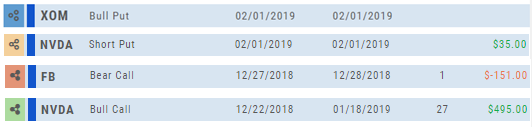
No action needed on these entries. The colored left tab shows the status of each trade:
Blue: (Open Trade, hollow dots, no connection), Yellow: (Adjusted, hollow dots, partial connection), Red: Loss (Closed, solid dots, connected), Green: Profit (Closed, solid dots, connected)
Yellow Line
Action is needed on these trade entries. The Trade may have gone through Expiration and needs to be Reconciled. By clicking on the Trade Line, the Trade Tab will display:

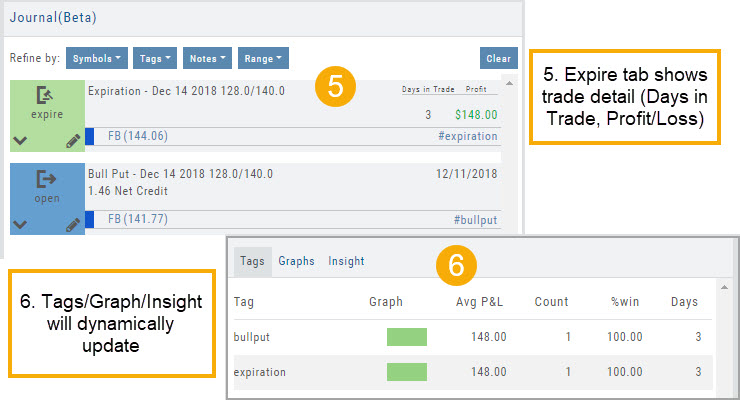
Once the action is completed, the entry will update on all Journal tables including the Tags, P/L Graph & Insight tabs.
It is important to reconcile expired trades to properly display profit and provide updated analytical information on your trading success.
Color Codes of The Trade Journal
The Tabs on the Journal are Color Coded for Easy Understanding of the Trade
Primary Tab Color Coding (see below for expiration tab coding)
Note: Orders are automatically updated when you check order status. Just make sure to select the time frame to cover the trades that need updating
 Light Blue
Active Live Order
This indicates that you have a current live order
 Dark Blue
Trade – Open
This indicates the opening transaction of a trade
 Gray
Gray
Expired or Canceled Order
This can be from a order that you canceled, or a day order that did not get filled
 Green
Green
Closed Trade – Profit
This indicates a trade that you closed for a profit
 Red
Red
Closed Trade – Loss
This indicated a trade that you closed for a loss
 Yellow
Closed Trade – Unmatched – Requires action to match to related
trade. Expand tab to see detail of trade.
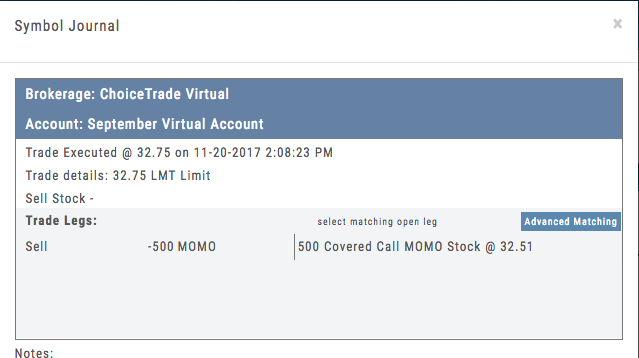 Unmatched Trades can happen if there are multiple trades and an entry trade needs to be identified or because a multi-leg trade was split on exit, or change of stock position when an option expired (exercise/assignment)
This is easily matched by clicking the edit icon (pencil) and selected which open order to match to. In some cases there may only be one, and it is simply a verification.
Expiration Tab/Tagging Colors
 Red or Green with No Color Tagging
This indicated the option trade expired Out of the Money (OTM)
There were no options exercised or assigned through expiration
 Red or Green with Dark Green Color Tag
This indicated that there were ITM options exercised/assigned
However, there was no change is stock ownership. Example: Bull Call where both legs were exercised/assigned.
 Red or Green with Yellow Color Tag
This indicates a change in stock ownership through exercise/assignment
This will happen with single leg options trade or where one leg of a spread was ITM at expiration
It is important to reconcile expired traded to properly display profit. If there are unreconciled expired options, the reconciliation window will automatically display when you go to the options tab.
Journal Navigation

It’s easy to look up trades. Choose from Stock symbols, tags used (ex: #bullCall, #longStraddle), Notes containing certain words or phrases, or date ranges from 1 Day to 1 Year.
On the individual Trade tabs, click the  icon to expand the trade detail. To edit/add tags, notes, to the trade entry, click
  then ‘save’ when completed.
Once the Trade Tab is expanding , you have additional options: The “Replay” icon,  , sends a trade from the Journal to Backtest Analysis. You can delete a Journal Entry by clicking on
  .
.
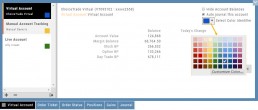
Color Tag Trading Accounts
Select a unique color for each trading account on the Account Summary tab. Each trade in that account will display that color on the Journal trade tab entry.
Now it’s easier than ever to identify trades at a a glance.
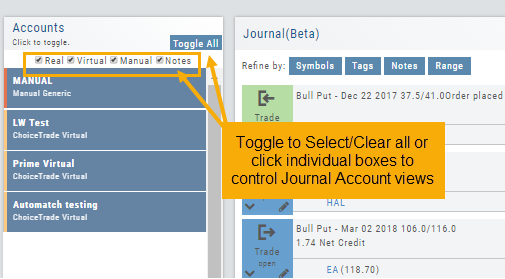
Journal Account Multi-Selector
Reviewing your Journal Accounts is made easier by using the Multi-Select tool on the Journal Tab. Control your Journal Account Views by selecting from Live, Virtual, Manual accounts or Notes or any combination of these.
Use the “Toggle All” button to switch or toggle your selection. Example: If you have your virtual selected and not your real accounts, Toggle will switch to real account and unselect virtual account. This can be a great way to analyze your results and compare real and virtual.
You can further sort by Symbol, Tags, Notes or Date Range within an Account by using the following tabs in the Journal:

NOTE: Any filtering, including account selection, will refine your analytics results too. Want to find your results from a specific account. Select just that account and analytics will refect accordingly.
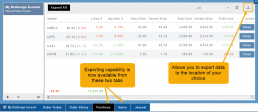
Position Download Ability
Downloading/exporting capability added to the Positions tab.
This feature is also available in the “Gains” tab.
This allows even greater flexibility with record-keeping from the Journal/Brokerage Account.
Reconcile Trade Notice
The Tags including the P/L Summary, Graph and new Insight tabs rely on updated Journal entries which includes reconciled trades.
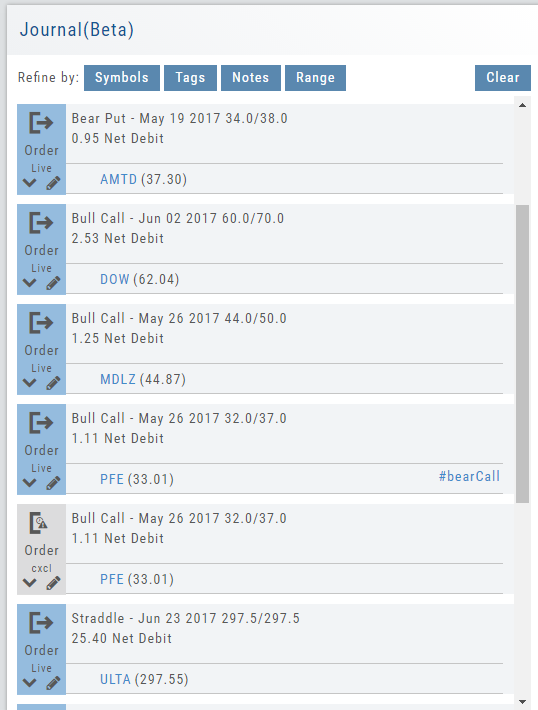
The following notice appears in the Journal when trades needs to be reconciled:

All trades in the trading account(s) selected will display with the option to change back to Regular View:
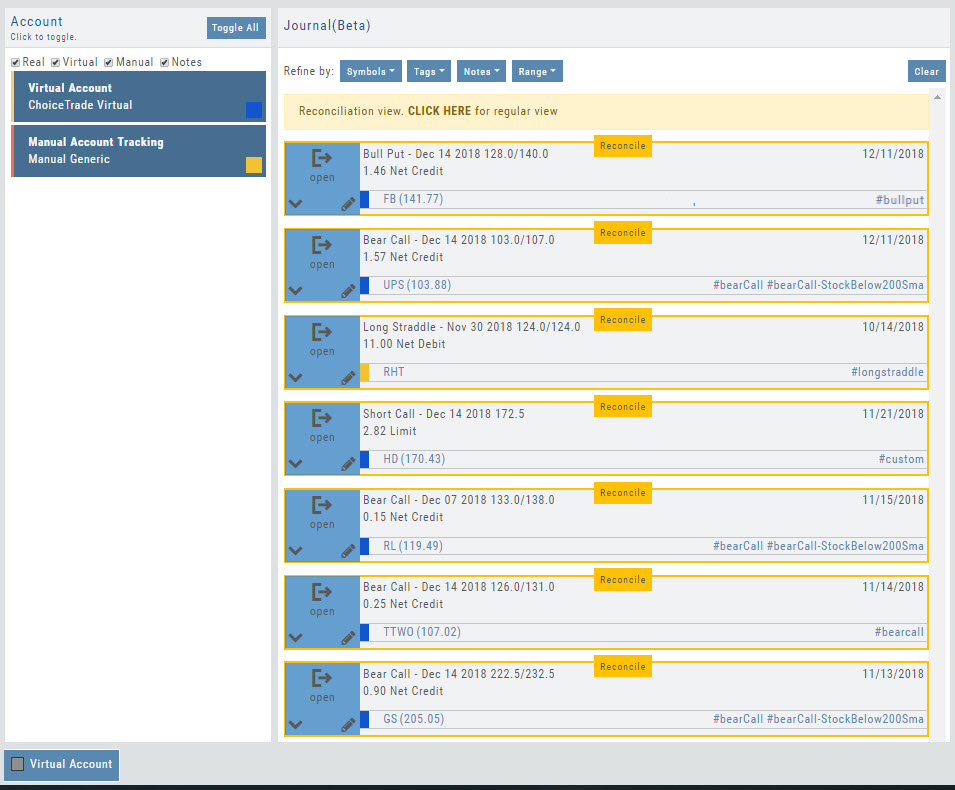
Individual trades are reconciled by clicking on the “Reconcile” tab outlining the Journal Entry.
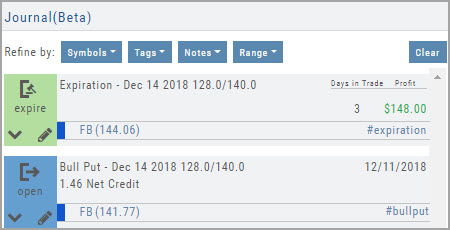
The Journal Tab will update showing the trade had a profit/loss or adjustment in the underlying.
Updating Journal Entries
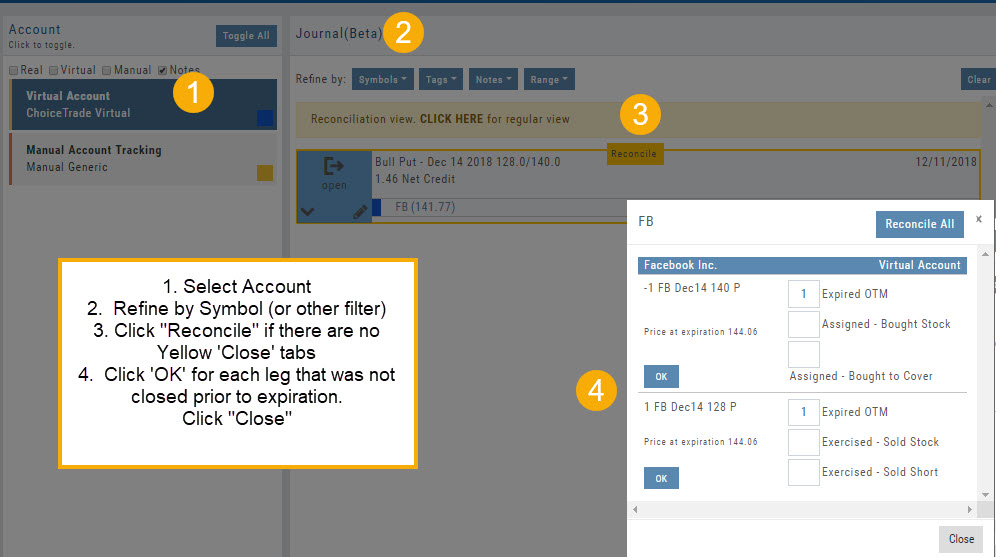
Logging into your account will update Journal entries for up to the last two months. However, trades that expired will need to be Reconciled. If the system is unable to match trades, a Yellow ‘Close’ tab will result, requiring manual action to close.
Follow the steps as shown below to reconcile your trades.
Note: Step 2 is not required, however, if you are just learning to use the Journal and it’s features, sorting by Symbol, especially if you have multiple trades, simplifies the process.